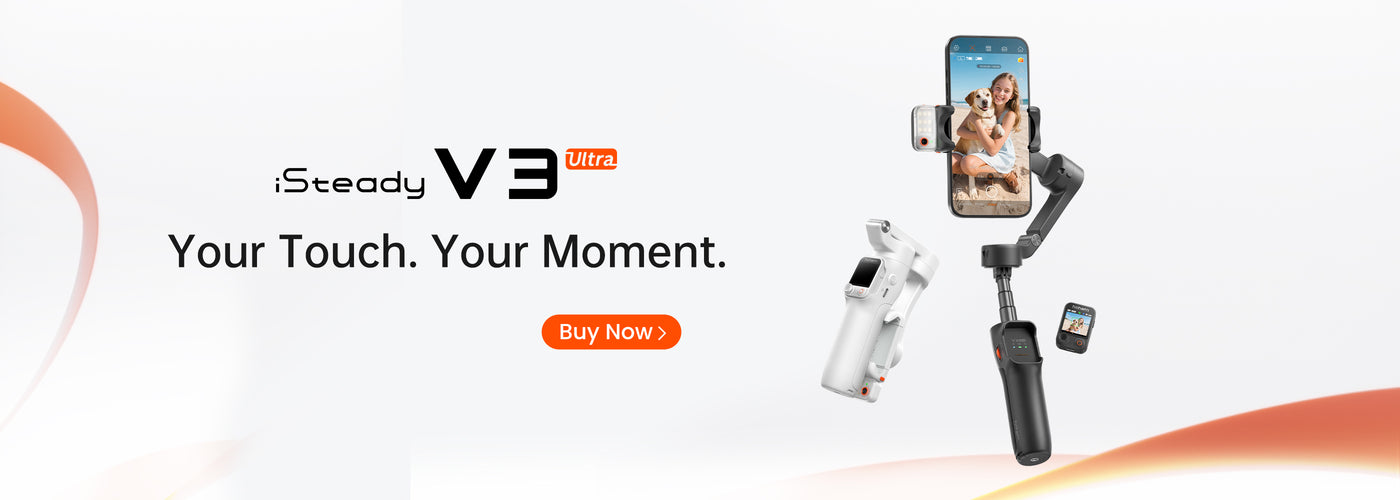
If you've recently experienced issues with your Hohem gimbal not finding your device, you're not alone. Many users encounter connectivity problems whether they are using smartphones, cameras, or other devices. In this comprehensive guide, we will explore common troubleshooting steps and tips to help you resolve this issue, enabling you to get back to enjoying smooth and stable footage in no time.

Understanding Your Hohem Gimbal

The Hohem gimbal is designed for stability and ease of use, providing filmmakers and content creators with remarkable features that help capture stunning video footage. However, to maximize its potential, the gimbal must connect properly with the device you intend to use. Issues may arise from a variety of sources, from Bluetooth settings to hardware compatibility, making it essential to understand how these devices interact.

Common Reasons for Connection Issues

Before diving into troubleshooting steps, it's beneficial to understand the most common reasons why your Hohem gimbal may not find your device:

  • Bluetooth Connectivity: Ensure that the Bluetooth on both your gimbal and device is enabled and set to discoverable.
  • Device Compatibility: Verify that your smartphone or camera is compatible with the specific model of your Hohem gimbal.
  • Firmware Updates: Outdated firmware can lead to performance issues and connectivity problems.
  • Battery Level: A low battery can cause functionality issues in both devices, preventing successful connection.
  • Interference from Other Devices: Nearby electronic devices can interfere with Bluetooth signals, leading to connectivity issues.

Step-by-Step Troubleshooting Guide

1. Check Bluetooth Settings

Start by ensuring that Bluetooth is enabled on both the gimbal and your device. Follow these steps:

  1. On your smartphone or camera, navigate to the Bluetooth settings and ensure it is turned on.
  2. Make sure your device is set to 'discoverable,' allowing it to be found by the gimbal.
  3. On the Hohem gimbal, turn it on and enter pairing mode according to the user manual, usually indicated by a flashing light.
  4. Look for the gimbal in the Bluetooth search results on your device and select it to connect.

2. Ensure Device Compatibility

It's crucial to ascertain that your device is compatible with your Hohem gimbal model. Check the manufacturer's website or user manual for a list of compatible devices. If you're using a smartphone, consider the following:

  • Operating system version – Ensure your phone's OS supports the gimbal's app.
  • Physical dimensions – Ensure your phone's size fits within the gimbal's holder.

3. Update Firmware

Outdated firmware can cause hiccups in performance, including connectivity issues. To update the firmware:

  1. Download the latest version of the Hohem app from your device's app store.
  2. Connect the gimbal to the app following the instructions provided.
  3. Check for firmware updates in the app and follow the prompts to install.

4. Check Battery Levels

Both the gimbal and your device should have adequate charge. If either device is running low on battery, it can lead to a failure to connect. Charge both devices fully before attempting to pair them again.

5. Reduce Interference

If you’re in an area with many electronic devices, try relocating to a space with fewer active Bluetooth connections. This may help your gimbal establish a better connection.

Additional Tips for Smooth Operation

Regular Maintenance

Keep your gimbal free from dirt and debris, which can hinder mechanical movement. Regularly wipe it down with a soft cloth and store it in a protective case when not in use.

Practice Proper Calibration

After successfully connecting your gimbal, take a moment to calibrate it for optimal performance. Calibration ensures that the gimbal understands the orientation of the device correctly. Follow the manufacturer's guidelines to calibrate effectively.

Utilize the Hohem App Features

The Hohem app is packed with features designed to enhance your shooting experience. Familiarize yourself with its offerings, including different shooting modes like time-lapse and motion lapse. These features can further alleviate the frustration of connection issues by providing advanced functionality once your devices are paired.

When to Seek Professional Help

If you've attempted all troubleshooting steps without success, it may be time to seek professional help. Contact Hohem customer support for assistance or consult user forums where experienced users share their insights. Additionally, consider bringing your devices to a local retail store where trained staff can help diagnose the problem.

Final Thoughts

Navigating technology can sometimes lead to frustrating obstacles, but understanding potential connection issues and knowing how to address them can make a significant difference. The Hohem gimbal is an excellent tool for achieving smooth, professional-looking footage, and with these troubleshooting tips, you should find it easier to overcome any connectivity hurdles that may arise.