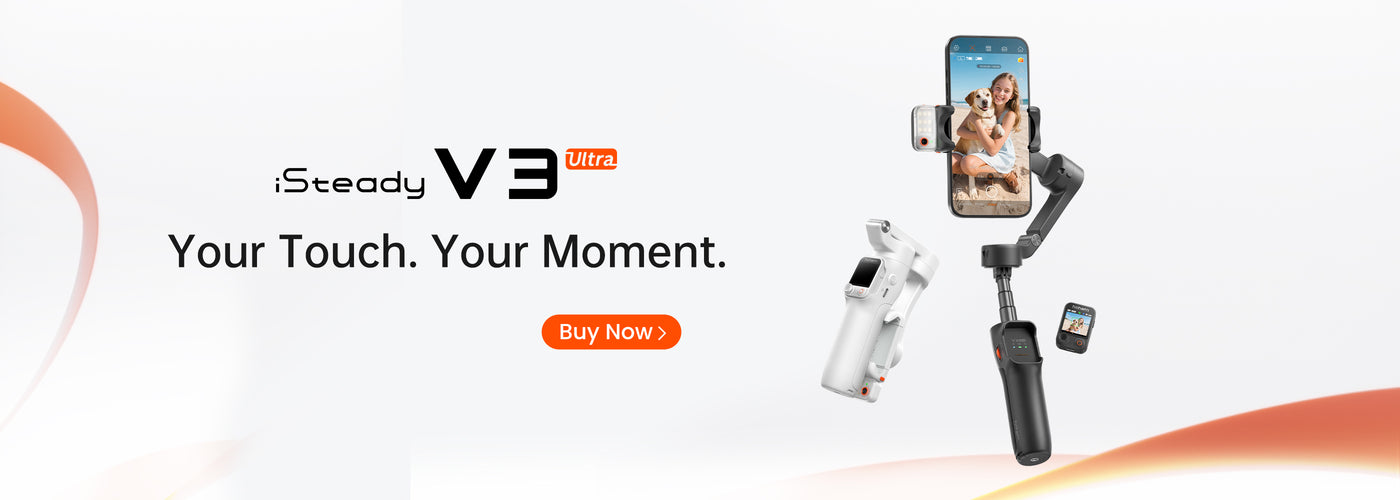
The Hohem iSteady X is one of the most popular smartphone gimbals on the market today, admired for its compact design and user-friendly features. For users who wish to unlock the full potential of their gimbal, it’s crucial to understand how to reset the device effectively. In this article, we’ll cover everything you need to know about resetting your Hohem iSteady X, ensuring you can make the most of your filming experience.

Understanding the Importance of Resetting Your Gimbal

Like any electronic device, there may come a time when your gimbal’s performance starts to lag or behaves unexpectedly. Resetting your gimbal can resolve various issues, such as connectivity problems or glitches in the firmware. This process restores your gimbal to its factory settings, allowing it to function optimally once again.

When to Consider Resetting Your Hohem iSteady X

While your Hohem iSteady X is a robust piece of technology, it may confront various challenges over time. Here are some common scenarios where resetting might be needed:

  • Unresponsive Controls: If the joystick or buttons fail to respond, a reset may serve to restore functionality.
  • Poor Stabilization: If your footage appears shaky despite settings adjustments, it could be time for a reset.
  • Bluetooth Connectivity Issues: When faced with connection problems between your gimbal and smartphone, resetting can help.
  • Firmware Update Problems: If you experience issues post-update, a reset may fix underlying bugs.

How to Reset Your Hohem iSteady X

Resetting your Hohem iSteady X is a straightforward process. Follow these simple steps:

  1. Power On: Turn on your Hohem iSteady X by pressing the power button.
  2. Connect to App: Ensure your smartphone is connected to the gimbal via the Hohem app.
  3. Access Settings: Open the app and navigate to the settings menu.
  4. Find Factory Reset Option: Look for the option labeled “Factory Reset” or “Reset to Default” in the settings.
  5. Confirm Reset: Follow the on-screen prompts to confirm the reset action.
  6. Recalibrate: After resetting, perform a recalibration of the gimbal for optimal results.

After you complete these steps, your gimbal should reset, giving you a fresh start to enjoy your content creation.

Recalibrating Your Hohem iSteady X

Post-reset, recalibration is crucial to restore proper stabilization functionalities. Here’s how to recalibrate:

  1. Place on a Flat Surface: Set your gimbal on a flat and stable surface.
  2. Open App: Launch the Hohem app and navigate to “Calibrate” in the settings.
  3. Follow Instructions: Follow any in-app instructions to complete the calibration process.

Recalibrating ensures that the motors can accurately gauge the position and angles while filming, enhancing your video quality.

Tips for Maintaining Your Hohem iSteady X

Maintaining your gimbal is vital to prolong its life and improve performance. Here are some tips:

  • Keep Firmware Updated: Regularly update your firmware through the Hohem app to fix bugs and enhance features.
  • Store Safely: Always store your gimbal in a protective case to avoid accidental damage.
  • Avoid Overloading: Ensure your gimbal is not overloaded with heavier smartphones or accessories than recommended.
  • Clean Regularly: Keep the motors and lenses clean to prevent dirt from affecting performance.

FAQs About Hohem iSteady X

What should I do if the reset doesn’t resolve my issue?

If the reset does not solve the problem, consider contacting Hohem’s customer support for further assistance, or check the online forums for potential fixes.

Can I reset the gimbal without using the app?

There is generally no physical reset button on the Hohem iSteady X; it is best to reset through the app to ensure all settings are correctly restored.

How often should I recalibrate my Hohem iSteady X?

Recalibration is recommended every time you reset the device or whenever you notice inconsistencies in stabilization.

Conclusion

Understanding how to reset your Hohem iSteady X is an integral part of maintaining its performance. By following the steps outlined, you can troubleshoot issues, enjoy smooth footage, and enhance your overall filming experience.