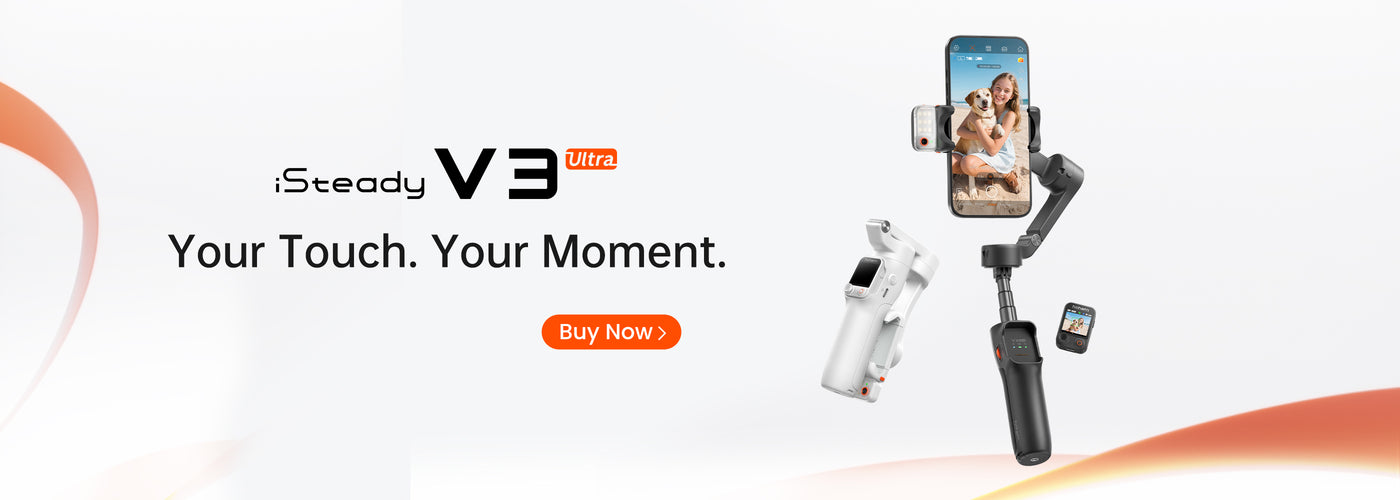
Calibrating your Hohem iSteady gimbal is an essential process that ensures you achieve the best stabilization for your video recordings. Whether you’re a professional filmmaker or a casual vlogger, proper calibration can make a world of difference in the quality of your footage. In this guide, we’ll walk you through the step-by-step process of calibrating your Hohem iSteady, maximizing its performance for your recording needs.

Understanding the Hohem iSteady

The Hohem iSteady is a versatile three-axis gimbal stabilizer designed for smartphones, action cameras, and DSLRs. It uses advanced algorithms and motors to stabilize your device, helping eliminate unwanted shakes and jitters while filming. Before diving into the calibration process, it’s crucial to understand why calibration is necessary. Proper calibration allows the gimbal to recognize the weight and balance of the camera setup, ensuring optimal performance.

What You Will Need

  • Hohem iSteady gimbal
  • Your recording device (smartphone or camera)
  • Hohem Gimbal application (install it on your device)
  • A flat, stable surface

Step 1: Preparing for Calibration

Before you begin the calibration process, it's important to prepare your gimbal correctly:

  1. Charge Your Gimbal: Ensure that your gimbal is fully charged. A low battery can affect its performance and calibration accuracy.
  2. Mount Your Device: Securely mount your smartphone or camera onto the gimbal. Make sure it is balanced properly.
  3. Install the Hohem App: Download and install the Hohem Gimbal app from the App Store or Google Play Store.

Step 2: Balancing the Gimbal

Proper balancing is crucial for calibration. Follow these steps:

  1. Slide the Mount: Adjust the sliding arm to fit your device perfectly. Move the device back and forth until it stays in a balanced position when you let go.
  2. Check Roll Balance: With the gimbal turned off, tilt it sideways. Your camera should not tip over; you may need to adjust the position of the camera slightly.
  3. Ensure Tilt Balance: Tilt the gimbal forward and backward; it should remain in place without falling over.

Step 3: Powering Up the Gimbal

Once you have balanced your gimbal, it's time to power it up:

  1. Turn On the Gimbal: Press and hold the power button until the gimbal powers on.
  2. Connect the App: Open the Hohem app on your device and connect it to your gimbal via Bluetooth.

Step 4: Calibrating the Gimbal

With everything set up, you are now ready to calibrate.

  1. Access the Calibration Menu: In the Hohem app, navigate to the settings menu and select 'Calibration.'
  2. Select 'Auto Calibration': This feature allows the gimbal to automatically calibrate based on the mounted device's weight and dimensions. Follow the on-screen instructions provided by the app.
  3. Manual Calibration: If you prefer to calibrate manually, choose 'Manual Calibration' and follow the prompts. This usually involves rotating the gimbal in various directions as indicated on the screen.

Step 5: Testing the Calibration

After calibrating, it's vital to test the gimbal to ensure everything is functioning properly:

  1. Perform a Test Run: Take your gimbal for a spin. Walk around or simulate movements while holding the gimbal to check its stability.
  2. Adjust Settings if Necessary: If you notice any issues, go back to the app and adjust the settings or recalibrate as needed.

Common Calibration Issues

Even after careful calibration, you may encounter some issues. Here are some common problems and their solutions:

  • Jittery Footage: This can occur if the gimbal is not balanced properly. Double-check the balancing steps to rectify this.
  • Camera Drifting: If your camera drifts to one side, attempt a recalibration and ensure that the device is mounted securely.
  • Software Update Required: Sometimes, the gimbal requires a firmware update. Check the app for any available updates to ensure optimal performance.

Tips for Best Performance

To maintain the performance of your Hohem iSteady gimbal, consider the following tips:

  • Regular Calibration: Calibrate your gimbal periodically, especially when changing devices or after extensive use.
  • Avoid Overloading: Exceeding the weight limit can affect stabilization. Always check compatibility before mounting.
  • Use Stabilization Software: For additional stability, consider using video stabilization software during editing.

Final Thoughts

Calibration is a vital skill for anyone looking to enhance their video production quality with the Hohem iSteady gimbal. Following these steps will ensure that your gimbal operates at its best, allowing you to capture smooth and professional-looking footage every time. Remember, practice makes perfect, so don’t hesitate to refine your calibration skills and experiment with different settings for various filming scenarios.