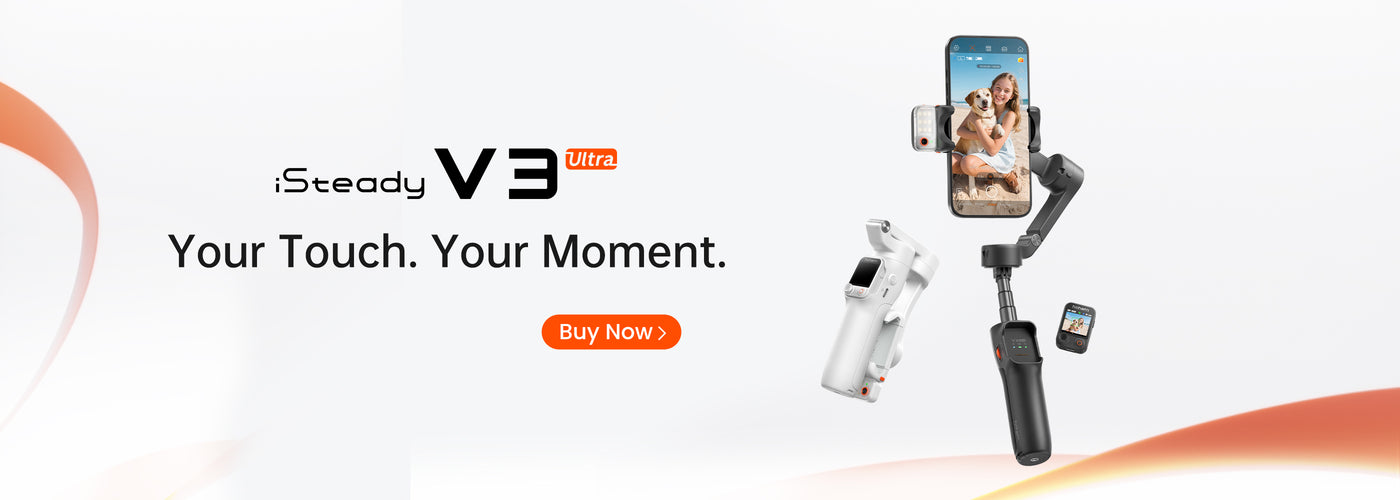
If you're a content creator, videographer, or simply someone who enjoys capturing moments in motion, you know how crucial stability is for great video footage. Enter the Hohem iSteady Pro, a robust 3-axis gimbal designed to assure smooth, cinematic-quality videos. This guide will provide you with all the necessary steps and tips to master the Hohem iSteady Pro, ensuring your videos shine.

What is the Hohem iSteady Pro?

The Hohem iSteady Pro is a handheld gimbal stabilizer that works with smartphones and action cameras. With its advanced stabilization technology, it helps eliminate unwanted shakes, tremors, and jerks in your videos, allowing you to create fluid movements even during dynamic shooting scenarios.

Key Features of the Hohem iSteady Pro

  • 3-Axis Stabilization: Efficiently compensates for camera movement on the pitch, yaw, and roll axes.
  • Multi-Mode Functionality: Offers multiple shooting modes such as Pan Follow, Lock Mode, and Full Follow mode for different shooting styles.
  • Long Battery Life: It provides up to 12 hours of continuous use on a single charge.
  • Built-in App: The Hohem app allows you to control various settings and access advanced video features.

Getting Started with Hohem iSteady Pro

Unboxing

Make sure to unbox your gimbal with care. Inside the package, you should find:

  • Hohem iSteady Pro Gimbal
  • Carrying case
  • USB charging cable
  • User manual
  • Quick start guide

Charging Your Gimbal

Before your first shoot, charge the Hohem iSteady Pro using the included USB cable. A full charge takes approximately 3-4 hours. Once charged, the battery indicator will light up, letting you know it's ready for action.

Balancing Your Camera

Balance is key in using any gimbal effectively. Here’s how you can achieve optimal balance:

  1. Attach your smartphone or action camera to the gimbal mount.
  2. Adjust the horizontal position by sliding the camera forward or backward until it remains upright when you let go.
  3. Adjust the vertical tilt by moving the camera up or down until it balances perfectly.
  4. Check this adjustment in all axes to ensure complete stabilization.

Exploring the Controls

The Hohem iSteady Pro features several buttons and indicators:

  • Power Button: Press and hold to turn the gimbal on/off.
  • Mode Button: Cycle through different modes like Pan Follow, Lock Mode, and Full Follow.
  • Joystick: Used for manually adjusting the tilt and panning of the camera.
  • Record Button: Start/stop recording from your camera directly.

Using the Hohem App

The Hohem App enhances your shooting experience, providing features like remote control, time-lapse, and motion tracking. Here’s how to connect it:

  1. Download the Hohem App available on iOS and Android.
  2. Turn on Bluetooth on your smartphone and the gimbal.
  3. Open the app and select the gimbal from the list of available devices.

Tips for Shooting with the Hohem iSteady Pro

Embed these pro tips into your routine for enhanced results:

  • Practice Different Modes: Each mode serves different shooting techniques. Experiment with them to discover their potential.
  • Maintain Proper Frame Rates: Keep your frame rates consistent to ensure seamless transitions throughout your footage.
  • Use Appropriate Settings: Adjust ISO and aperture based on lighting conditions to achieve the best video quality.
  • Be Aware of Your Surroundings: Keep an eye out for obstructions while filming and navigate smoothly around them.

Advanced Techniques for Cinematic Shots

If you want to elevate your video creation game, consider integrating these advanced techniques using the Hohem iSteady Pro:

  • Track Objects: Use the app to define and track moving subjects, adding a dynamic feel to your videos.
  • Timelapse: Capture stunning visuals by setting the gimbal in timelapse mode for slow-motion effects.
  • Hyperlapse: Create mesmerizing hyperlapse sequences by combining the gimbal's stabilization with strategic camera movements.

Common Mistakes to Avoid

Even seasoned videographers can slip up! Here are some common mistakes to avoid:

  • Not Balancing the Gimbal: Skipping this crucial step will lead to poor stabilization.
  • Ignoring Firmware Updates: Regularly check for firmware updates via the Hohem app to ensure optimal performance.
  • Filming in Low Light: Ensure your gimbal shots are made in well-lit areas to avoid grainy footage.

FAQs about Hohem iSteady Pro

1. Can I use the Hohem iSteady Pro with a DSLR camera?

The iSteady Pro is primarily designed for smartphones and action cameras. For larger cameras, consider Hohem's more robust models specifically built for DSLRs.

2. How do I clean the gimbal?

Use a soft, lint-free cloth to clean the gimbal. Be careful not to get any moisture into the electronic parts.

3. What should I do if my gimbal isn't functioning properly?

If you encounter issues, restart the gimbal and check for any updates in the app. If the problem persists, consult the user manual or contact Hohem support.